
Originals, untouched
SMBDrop sends the exact bytes in your library. No recompression, no renamed files, no stripped metadata.
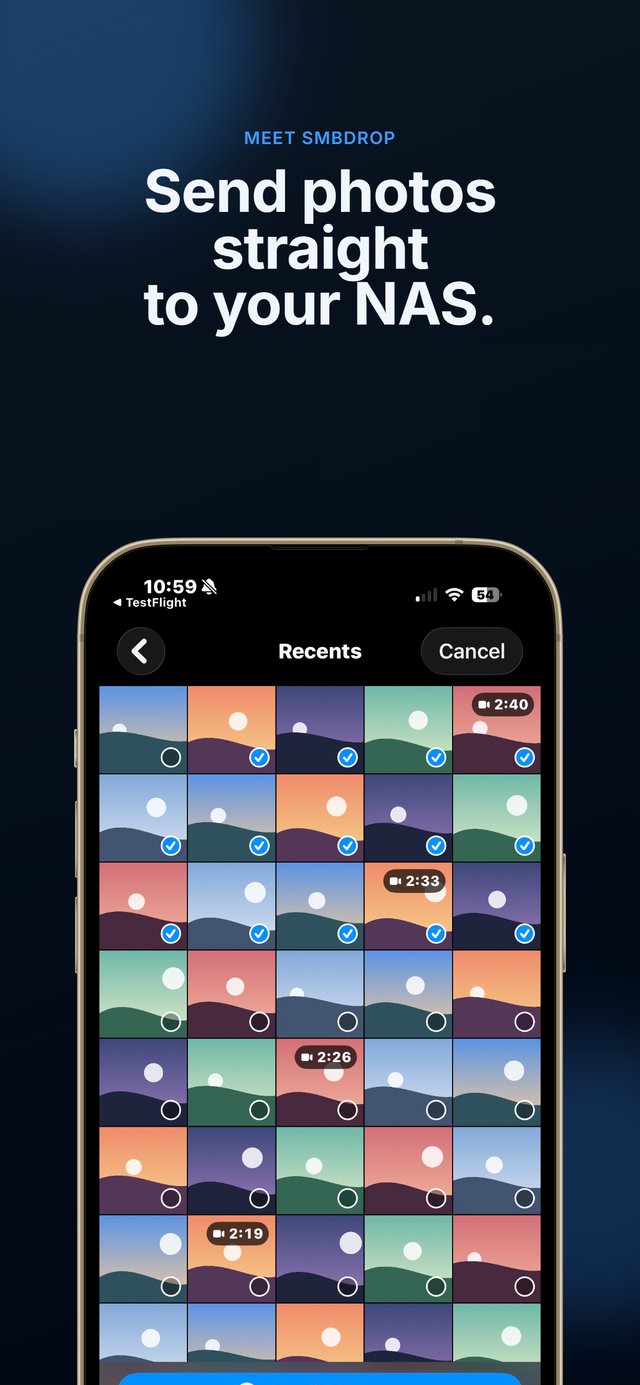
SMBDrop moves photos, videos and files between your iPhone and your own SMB shares: NAS, Windows, macOS or Samba. No account. No cloud. No subscription.

How it works
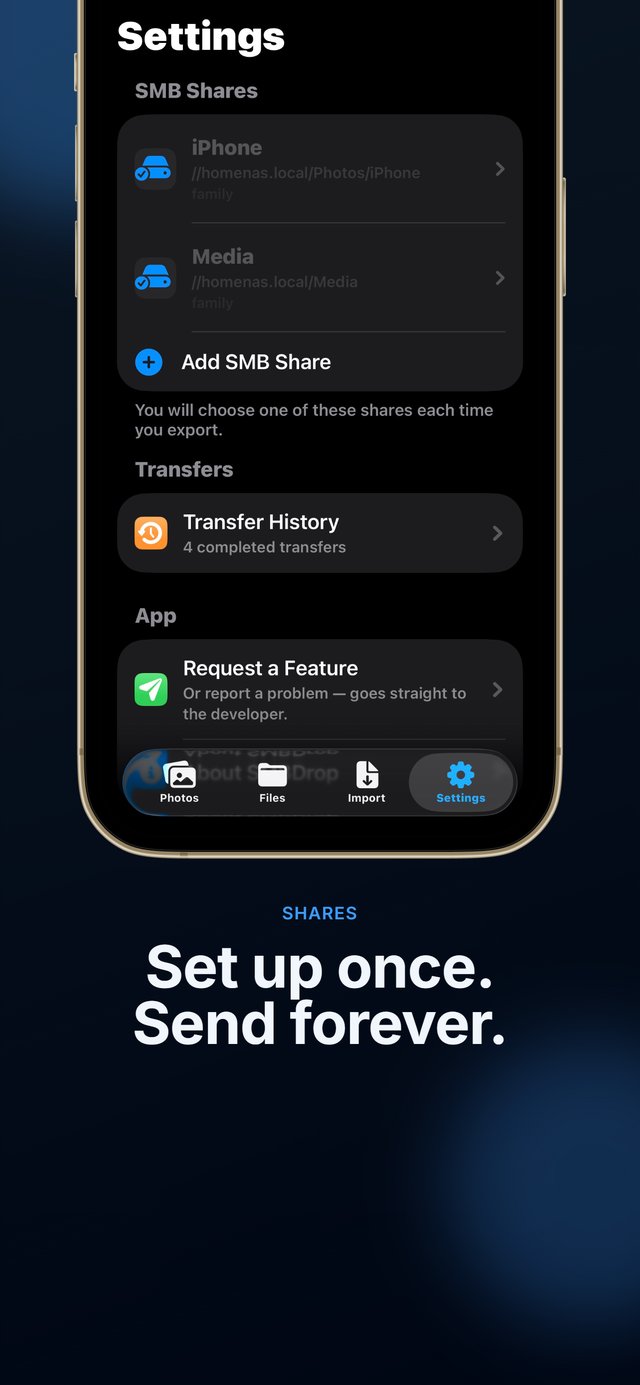
Enter your server's address and sign-in. Find Shares lists the names your server actually exports, so you can pick one instead of guessing. Custom ports supported.
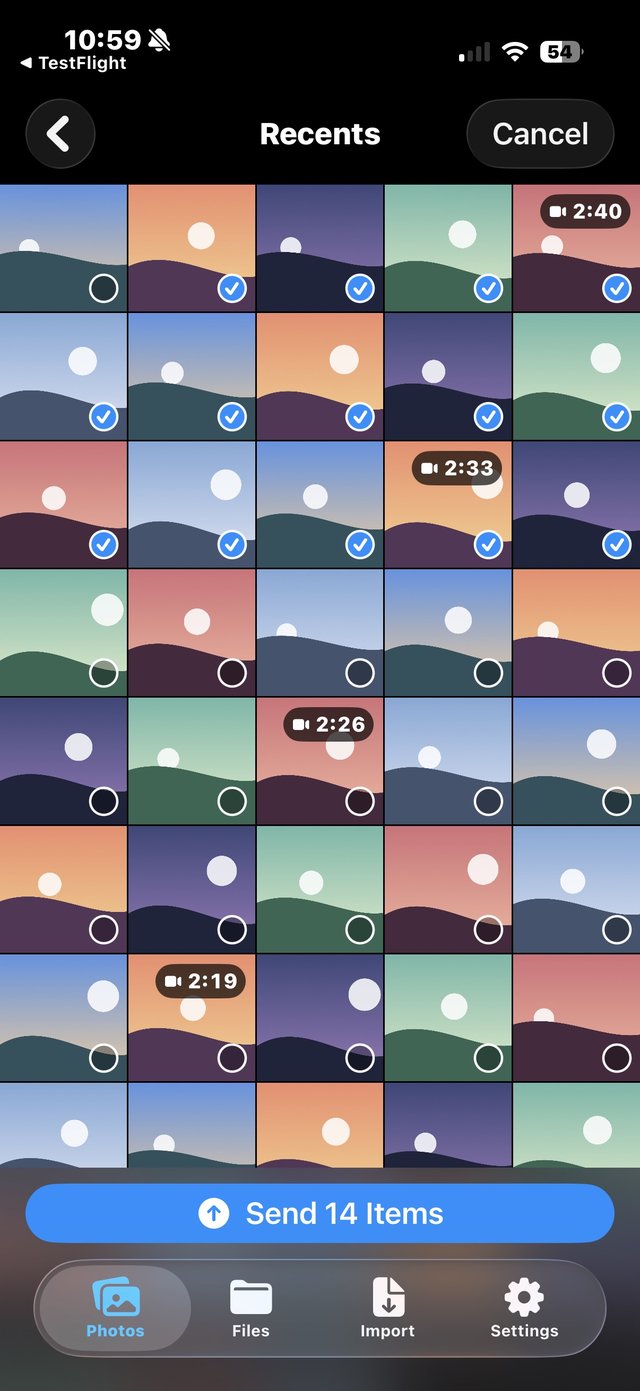
Photos and videos from your library (drag to select a range) or any file from the Files picker. Live Photos keep both halves. Or use Share → SMBDrop from another app.
Transfers continue after you leave the app. Failed items wait in a durable queue and can be retried. Nothing is lost silently.
What you get
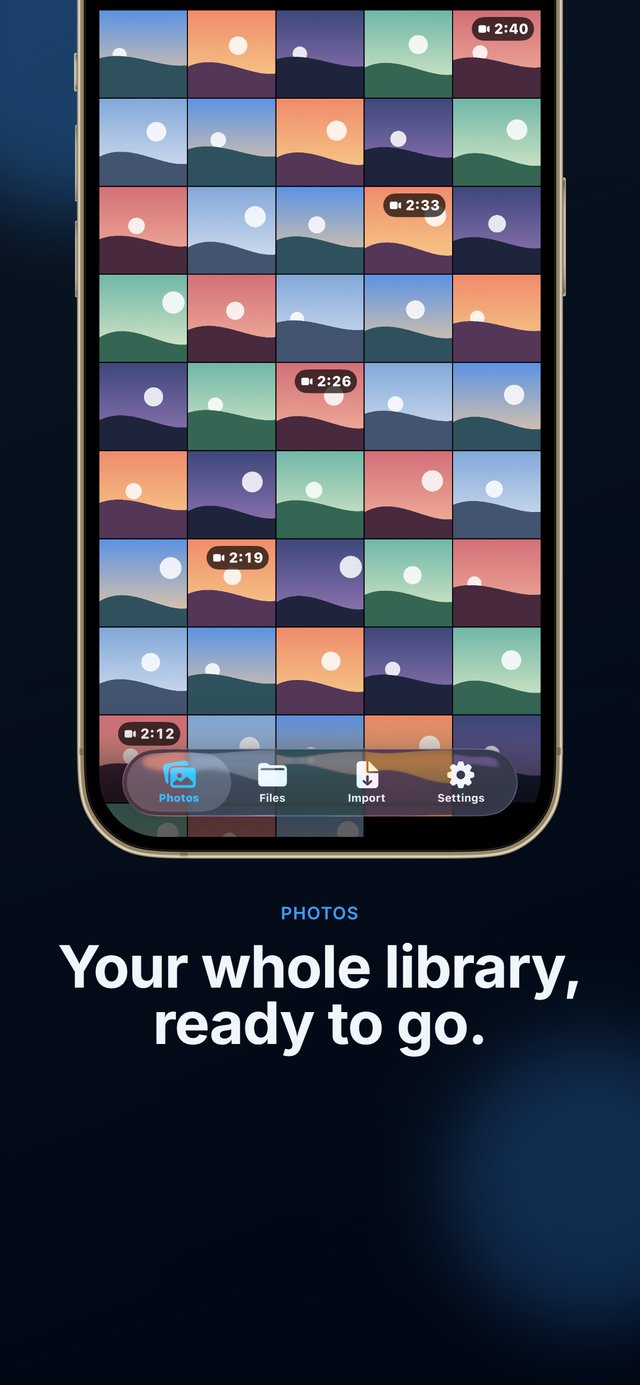
SMBDrop sends the exact bytes in your library. No recompression, no renamed files, no stripped metadata.
Sends every new photo and video to one share when you open the app, and overnight while your iPhone charges. Or use Select All to send a whole album in one go.
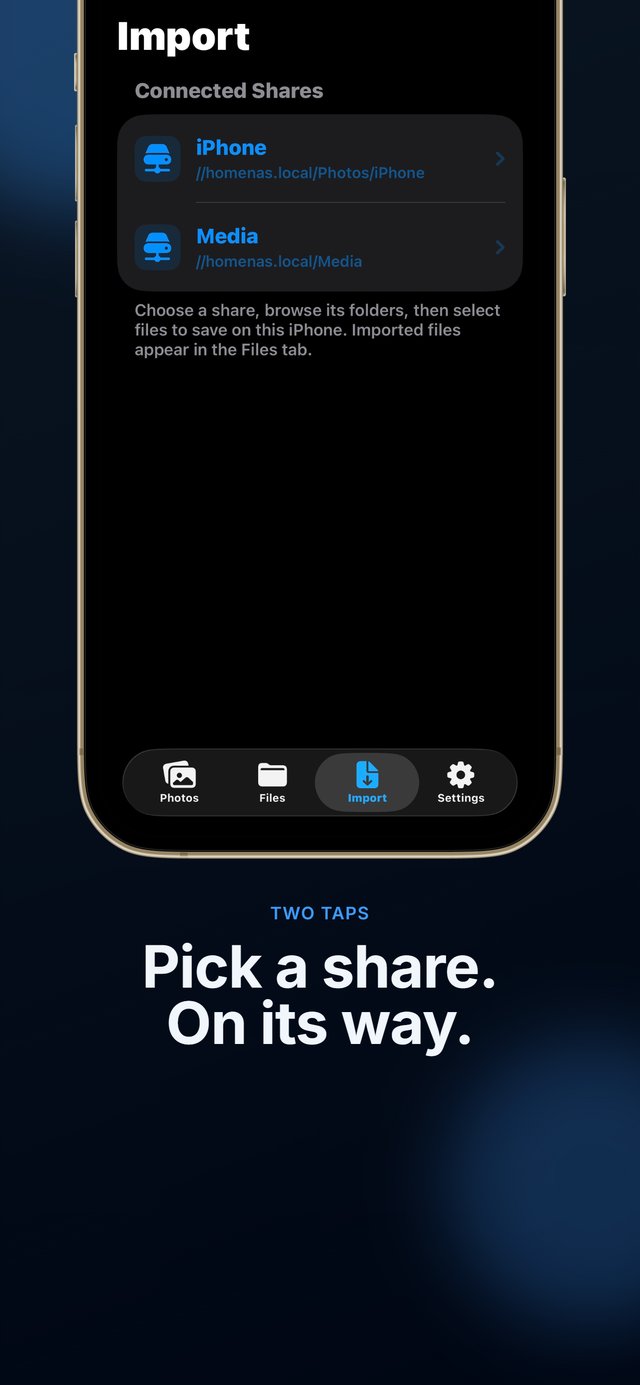
Browse your shares and pull files onto your iPhone, verified byte-for-byte and never overwriting a local file, into an imports library you can preview, share or save to Photos.
Server passwords live in your iPhone's Keychain and nowhere else. Deleting a share deletes its password.
Transfers go device-to-server over your network. Your files never touch anyone else's infrastructure, including ours.
Synology, QNAP, TrueNAS, UGREEN, Unraid and most NAS devices, plus Windows and macOS file sharing and Samba on Linux.
See it in action
Analytics, tracking, accounts: none
The app has no account system, no analytics and no tracking. The only thing it ever sends the developer is a feedback message you choose to submit from Settings, with the app and iOS version attached. Read the policy.
Guides
SMBDrop, Synology Photos, PhotoSync, Immich, Nextcloud, the Files app and more, compared honestly.
Turn on SMB in DSM, create a user and shared folder, and send your originals.
Share a folder on Windows 10 or 11, connect from iPhone, and fix the usual sign-in and firewall errors.
Every realistic option, from a Mac or PC to a NAS, and what each one actually keeps.
Export an SMB share, create a user, and connect from iPhone.
What Apple's built-in SMB client does well, and where it runs out.
One purchase, yours to keep. No account to create, no subscription to cancel: just your iPhone and your own share.
£2.99 once · no subscription · iOS 17+